Prism Cloud is only available with eligible subscriptions and in specific regions. |
This page covers four primary topics related to publishing Prism projects to Prism Cloud:
Publishing a project for the first time
Updating a previously published project
Publishing a previously published project "as new"
Potential problems encountered while publishing
Publishing a Project for the first time from the Prism Desktop application
Once you get signed in to Prism Cloud, you're ready to start publishing your work. To begin, open the project file that you'd like to publish. Before publishing, ensure that the file is saved locally (save the file and give it a name). Click the Publish button in the Prism Cloud section of the toolbar. This time when the popover dialog appears, you'll be able to specify where you'd like to publish your Prism project within Prism Cloud. This dialog contains two dropdown menus: one to select your workspace (in case you are a member of more than one) and another to select the folder within the workspace where you'd like to publish your project. Remember that all projects published to Prism Cloud must be published to a specific folder.

Note that the default folder for publishing is your Personal folder. Unlike other common folders within a workspace, your Personal folder is visible only to you. Other members of your workspace won't be able to see your Personal folder or browse its contents unless you explicitly share the project with them or provide the URL of a project published inside your Personal folder (in this case, they will only be able to view that specific project; they still cannot browse through your Personal folder).
Once you've selected your desired workspace and folder, click the "Publish" button, and Prism will begin publishing your project to Prism Cloud.

If you close this dialog while your project is uploading, Prism will continue to publish the project in the background. Upon completion, Prism will provide a success notification which will include a link directly to the published project within Prism Cloud. Clicking this link will allow you to view the project, navigate to other areas of your workspace and the Prism Cloud app, share your project, or create a discussion within the project.

If a publish is unsuccessful, Prism will alert you that the project could not be published along with an explanation. Most of the time, the problem has to do with the size of the published graph or Prism file. The page on Prism Cloud publication limits provides more detailed information on this topic.
What happens if my file isn't saved?
In order to publish a file to Prism Cloud, the file must first be saved locally (in other words, you must give it a name and specify a save location). If you try to publish a project without first saving it, you will see the following message in the Prism Cloud popover dialog: "Please save your file to enable publishing"

Updating a previously published project
Once a project has been published, a link is created between the Prism file stored locally on your device and the Prism Cloud project. This link allows the same file to be used on different devices while still remaining linked to the same Prism Cloud project. As a result, you're able to update the Prism Cloud project with any changes that you make to the local Prism file. After you've made your desired changes, you can click on the Update button in the Prism Cloud section of the toolbar (the Update button replaces the Publish button if a project has already been published). When the popover appears, it will display information about the published project including: the workspace name, a link to the published project in Prism Cloud, and the date/time of the last successful publish (or update). Additionally, you'll have the options to either "Update" the project or to "Publish as New" (discussed in the next section).

If you simply want to publish your most recent changes to the existing Prism Cloud project, click the Update button. Prism will begin publishing the project, and when it completes it will provide a success message similar to the one shown after initially publishing the project.

Importantly, the link between the Prism file stored locally on your device and the Prism Cloud project is unchanged during this process. You are able to update the same Prism Cloud project as many times as you'd like as long as this link remains unchanged in the Prism file.
Updating projects with Editor permissions
With Editor permissions, multiple workspace members can push updates to the same Prism Cloud project. This is particularly useful for collaborative work where team members need to contribute changes to a shared project. Files can be downloaded from Prism Cloud, modified locally, and then updated back to the original cloud project as long as the update is performed through the Prism desktop application.
After initially publishing a Prism project, you may decide that you do not wish to update the same Prism Cloud project, but create an entirely new Prism Cloud project from the same Prism file. This process is referred to as "Publish as New". After publishing a project to Prism Cloud, simply click the Update button in the Prism Cloud section of the toolbar to see information about the Prism Cloud project (workspace name, a link to the existing cloud project, and the date/time of the last publish/update). Then, click the "Publish as New" button at the bottom of this dialog. A second message will be displayed informing you that a new Prism Cloud project will be created, and - more importantly - that the link between the Prism file and the existing Prism Cloud project will be lost.

To continue, simply click the "Continue" button, which will then bring up the original Publish dialog in which you can choose your desired workspace and folder location to publish the new Prism Cloud project.
Note that this process does not remove the original Prism Cloud project. As a result, there will be two Prism Cloud projects after publishing as new: the new project that is now linked to the Prism file stored locally, and the original that has been "orphaned" and is no longer linked to the Prism file. Projects that have been "orphaned" in Prism Cloud cannot be updated because the link between them and the Prism file has been removed.
A workaround for avoiding "orphaned" projects in Prism Cloud
Before publishing as new, duplicate the Prism file on your device. If you'd like, give the new file a different name to distinguish the two files. With this newly duplicated file, choose to "Publish as New". The duplicated file will be linked to the new Prism Cloud project, while the original file will remain linked to the original Prism Cloud project. More importantly, both Prism files can still be updated with future changes if needed.
Adding a Prism file to Prism Cloud directly
As an alternative to publishing a Prism file from within the Prism desktop application, you may also upload Prism files to Prism Cloud directly. To do this, simply go to the Prism Cloud app (https://app.graphpad.com) and sign in. Once signed in, select the workspace and folder where you'd like to add the Prism file. Then simply locate the file on your local device and click+drag it into the folder view.
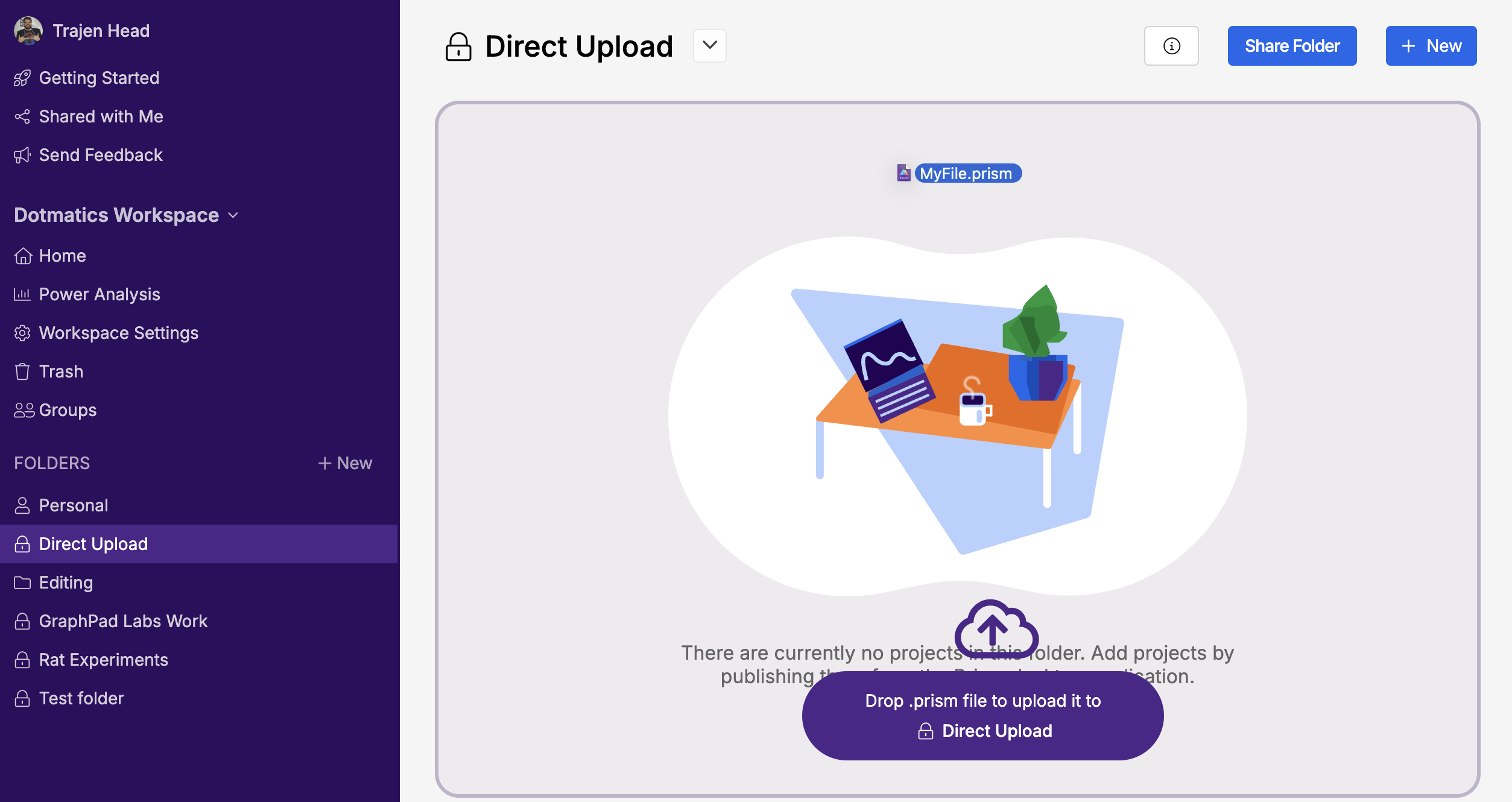
Alternatively, click the "+New" button either in the left navigator panel or at the top of the folder view and choose "Upload Prism File", and choose your file.
Important notes about direct web uploads
While files downloaded from Prism Cloud and updated through the Prism desktop application will maintain their link to the original cloud project, there is one important exception: if you drag and drop a file directly into the Prism Cloud web application, any existing link will be broken and a new cloud project will be created. This happens even if the file was previously linked to an existing project. To preserve the link and update an existing project, always use the Update button in the Prism desktop application rather than uploading directly through the web interface.
Finally, only files in the .prism file format can be uploaded this way. Prism Cloud direct upload does not accept files in the legacy .pzfx or .pzf formats.
What can I publish with Prism Cloud?
When you publish your work to Prism Cloud, all of your data, results, graphs, and layouts are sent to Prism Cloud for you to view, share, and collaborate on with your colleagues. Additionally, if you're working with one of Prism's legacy file formats (PZFX or PZF), you will only be able to publish graphs and layouts. If you attempt to publish a project from a PZFX file that has no graph or layout sheets, you will be shown the following alert:

This is true whether you are publishing a project for the first time or updating an existing project (after deleting all graphs and layouts from the project file). Note that this alert will also be shown if you attempt to publish a project from a file in the .prism file format that does not contain any data, results, graphs, or layouts (essentially an empty file).
Individual sheets cannot be published alone
When publishing a project to Prism Cloud, you don't need to specify which sheets should/should not be included. Instead, all of the sheets within the project are sent to Prism Cloud and remain grouped as a project within the selected workspace. If you really only want to publish an individual sheet, one potential workaround would be to save that sheet's family as a new Prism file (File > Save Special > Save Family As...). Then, you can publish the new project that contains only the desired sheet.
Potential problems encountered while publishing
There most common "problem" that you may encounter when trying to publish a project to Prism Cloud is that your project (or at least one of the sheets within your project) exceeds the publishing limits for Prism Cloud. If this happens, Prism will show the following alert:

Verify that your project doesn't exceed any of the publishing limits for Prism Cloud, then simply try again.