Prism Cloud is only available with eligible subscriptions and in specific regions. |
Signing in from the Prism desktop application
In order to sign in (or sign up) to Prism Cloud from the Prism desktop application, you must be using Prism 9.5 or newer. If you're using an older version of Prism, visit our updates page to download the latest version. Once you have the latest version installed, launch the Prism application. You should now see the Welcome dialog.

From here, either create a new Prism file or open an existing file. Once you have your file open, click either the Publish button or the User Avatar button in the Prism Cloud section of the toolbar:

Windows

Mac
After clicking the Publish button, a popover dialog will appear (Windows on the left, Mac on the right):


Click the "Sign In" button, and a new window will open allowing you to login or create a new account. Alternatively, after clicking the User Avatar button, you can choose the option "Sign in...". If you already have a GraphPad.com account, simply use the same email and password to log in here. Otherwise, create a new account.
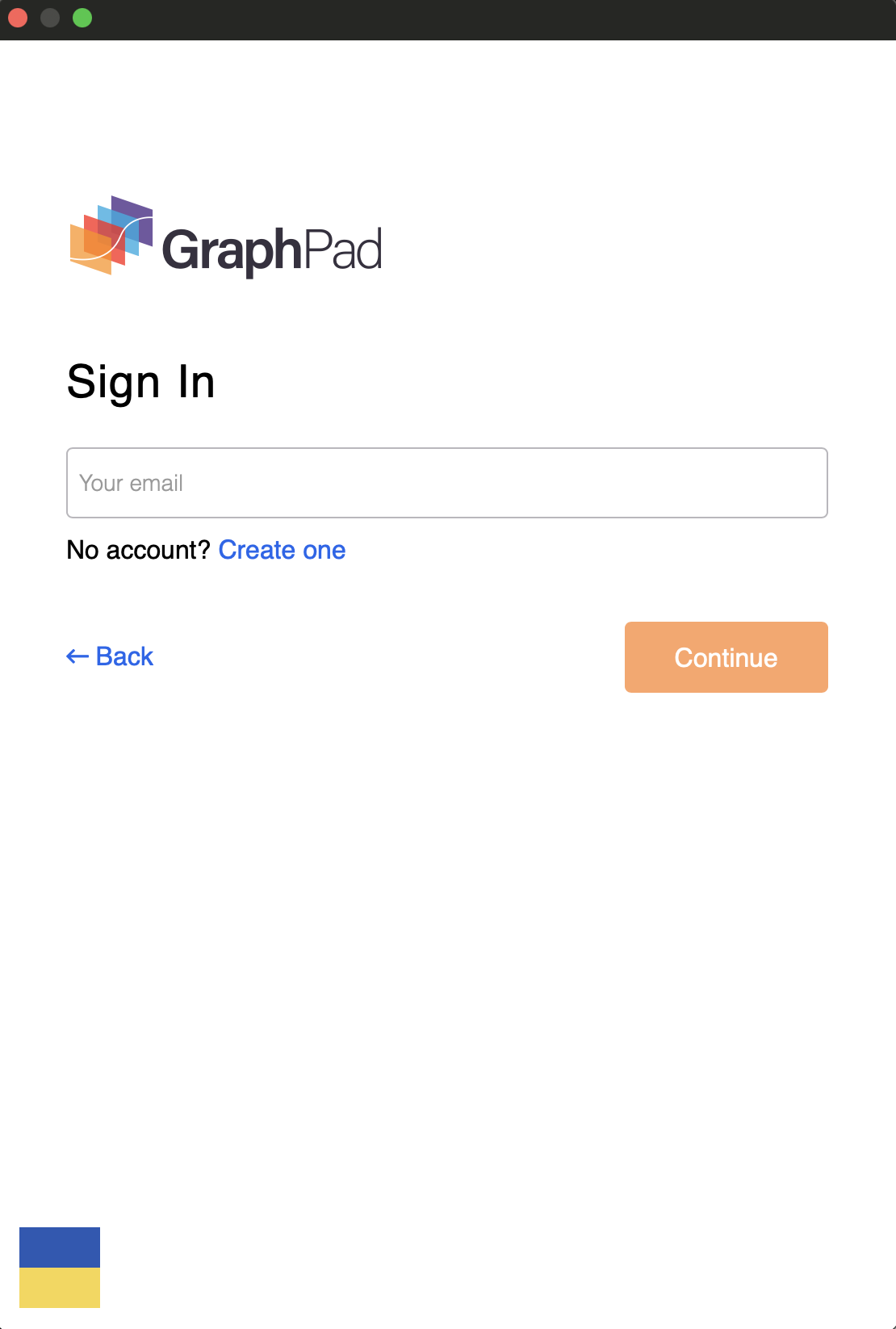
Upon successful login or registration, you'll be shown the following screen:

In some situations, you may see some additional messages or errors on this screen. Each of these messages and their cause are described on the Login Error Messages page, and - depending on the message displayed - may affect your ability to publish your Prism projects to Prism Cloud.
Alternate methods to signing in from the desktop application
Using the Prism Cloud button in the toolbar is probably the easiest way to get logged in (or signed up) to Prism Cloud. However, there are a couple of other ways to access the log in form:
1.Open the File menu, then choose Prism Cloud > Sign in...
2.Open Prism preferences (on Windows, Edit > Preferences... or on Mac, Prism > Preferences...). Switch to the Account tab. Click the "Sign in" button in the Prism Cloud section of this tab.
Signing in to the Prism Cloud app directly
You're also able to access your Prism Cloud workspace without the Prism desktop application. Simply navigate to the Prism Cloud app at https://app.graphpad.com and sign in using your GraphPad.com account email and password.