Prism Cloud is only available with eligible subscriptions and in specific regions. |
Co-Editing allows team members to collaborate on the same Prism project by independently publishing new versions to the cloud. It saves time, streamlines teamwork, and gives everyone the ability to track version history efficiently - all within the same project.
How Co-Editing Works
1.User A publishes a project to Prism Cloud
2.User A shares the project with User B, granting them Editor access
3.User B downloads the shared project file and opens it with the Prism desktop application
4.After making changes in the Prism Desktop application, User B updates the original Prism Cloud project with their changes
5.User A receives a notification when this new version is published
Understanding Permission Roles
Prism Cloud offers two permission roles for shared projects:
•Commenters can view the project, add comments to discussions, and download the file to work with locally. However, Commenters cannot push updates for this project back to Prism Cloud.
•Editors have full control and can move, rename, delete, share, or update the project. Only Editors can participate in co-editing by publishing new versions to the cloud.
Access and Permissions
•Only workspace members can be added as Editors to Prism Cloud projects
•In Personal and Common folders, only the project owner can initially assign others as Editors. Once assigned, Editors may also assign other Editors to a project
•In Private folders, both the project owner and other folder members automatically have Editor access to all projects inside that folder. This means that Editor permissions granted to a Private folder cascade to all content within that folder.
•Projects can be shared with groups, allowing you to grant Editor or Commenter access to multiple workspace members at once
How to Invite an Editor
In order to invite someone else as an Editor to a project, you must be the project owner or already have Editor access (see above).
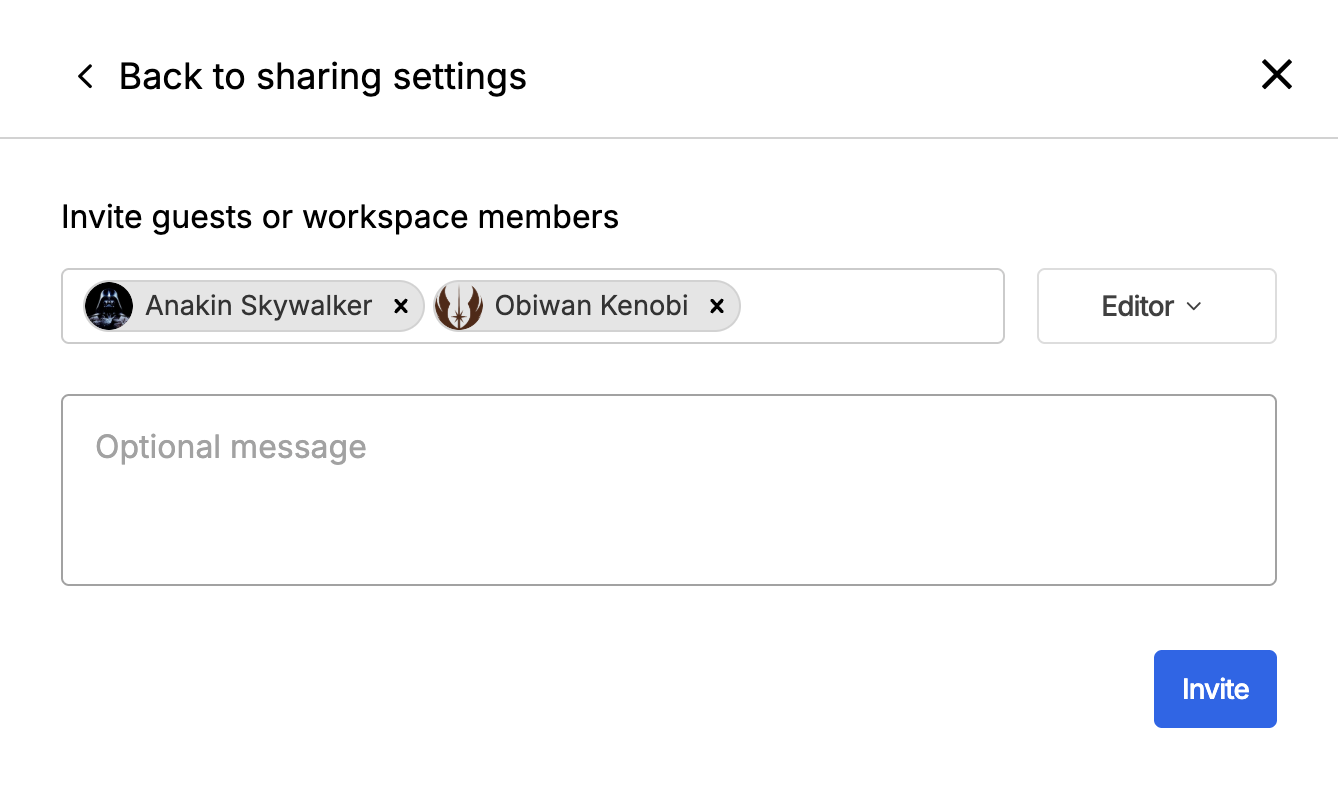
1.Open the project in Prism Cloud
2.Click the Share button to open the Share dialog
3.Select a workspace member by typing their name or email address
4.Assign the Editor role using the dropdown menu and send the invitation
For more details, see our page on Sharing Projects in Prism Cloud.
Package Access and Version Visibility
•All users (Personal and Group plans) can see the latest version of a project
•Users on Enterprise plans can see the full publish version history of a project in Prism Cloud
Requirements
Prism version 10.5 or newer is required for Co-Editing of Prism Cloud projects.