Features and functionality described on this page are available with our new Pro and Enterprise plans. Learn More... |
Overview
The Multiple Comparisons tab is where you specify post-hoc tests to identify which specific groups differ from each other. While the ANOVA table tells you whether factors have significant effects overall, multiple comparisons tests tell you which particular groups are different.
When you need multiple comparisons:
•The overall ANOVA shows a significant effect (P < 0.05)
•You want to know which specific groups differ
•You want to compare groups in specific ways
When you might not need multiple comparisons:
•No effect in the overall ANOVA was found to be significant
•You're only interested in the overall test, not specific pairwise differences (not impossible, but rare)
Types of Multiple Comparison Patterns
Prism offers four patterns for multiple comparisons in Multifactor ANOVA:
1.No multiple comparison test - Skip post-hoc testing
2.Main effect comparison - Compare groups within a single factor, averaged across all other factors
3.Simple effect comparison - Compare groups within a single factor, at specified levels of other factors
4.Cell-by-cell comparison - Compare factor combinations directly
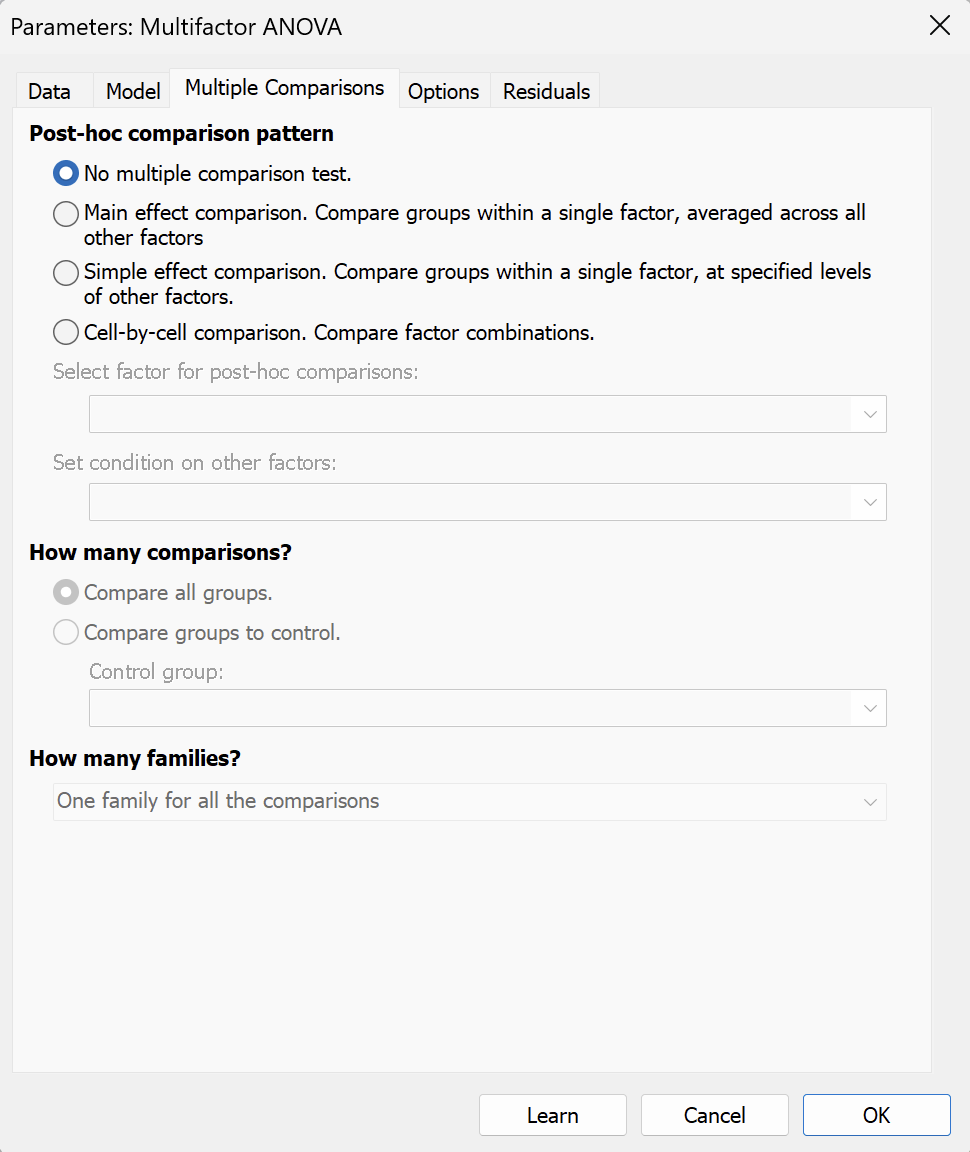
The next few sections of this page will explore each of these in more detail.
Option 1: No Multiple Comparison Test
There's not much to describe here. With this option selected, Prism will skip the process of performing any multiple comparisons (post-hoc) tests. If you choose this option, you will always be able to re-run the analysis later with multiple comparisons selected (simply re-open the parameters dialog and change your selection; Prism will automatically re-calculate the analysis and update the results appropriately).
Option 2: Main Effect Comparison
What this multiple comparison method does: Compares groups within a single factor, averaging across all levels of all other factors.
When to use:
•You have a significant main effect in the ANOVA
•You want to know which levels of that factor differ
•You want to make statements about one factor that apply generally (across all conditions of other factors)
•You're not particularly interested in how factors interact
Example:
Start by assuming you have three factors:
1.Fertilizer: None, Organic, Synthetic (3 levels)
2.Watering: Low, Medium, High (3 levels)
3.Light: Shade, Partial, Full (3 levels)
If you select "Main effect comparison" for Fertilizer:
•Prism compares: None vs. Organic, None vs. Synthetic, Organic vs. Synthetic
•Each comparison uses data from all watering × light combinations
•Results tell you about fertilizer effects in general, not at specific watering or light levels
How to set it up:
1.Select the "Main effect comparison" radio button
2.Under "Select factor for post-hoc comparisons:", choose which factor you want to compare
oA dropdown menu will show all your grouping variables
oSelect the factor whose levels you want to compare
3.Under "How many comparisons?", choose:
oCompare all groups - All pairwise comparisons (most common)
oCompare groups to control - All groups compared to one reference level
Interpreting main effect comparisons
The results of this type of multiple comparisons test tell you about average effects across all conditions. For example:
•"Organic fertilizer produces significantly taller plants than no fertilizer (P = 0.002)"
•This statement applies averaging across all watering and light conditions
Important caveat: If there's a significant interaction involving the factor you're comparing, main effect comparisons can be misleading. The effect of fertilizer might differ depending on watering or light level. In that case, consider using simple effect comparisons instead.
Option 3: Simple Effect Comparison
What this multiple comparisons method does: Compares groups within a single factor, at specific levels of one other factor (and averaged across all levels of remaining factors).
When to use:
•You have a significant interaction in the ANOVA
•The effect of one factor depends on levels of another factor
•You want to make statements that are specific to certain conditions
•You want to "slice" your data to look at effects in specific subgroups
Example:
Using the same three-factor design (Fertilizer × Watering × Light), you may choose to:
•Select "Simple effect comparison"
•Select "Watering" as the factor for post-hoc comparisons
•Select "Fertilizer" as the condition
Prism will compare watering levels (Low vs. Medium vs. High) within levels of fertilizer and across all light levels. In this example, this would answer the questions "Among plants that received no fertilizer, does watering frequency affect plant height? Among plants that received organic fertilizer, does watering frequency affect plant height? Among plants that received synthetic fertilizer, does watering frequency affect plant height?". There are three sets of questions, and Prism will output three sets of multiple comparisons (one set of comparisons for each level of the condition factor).
How to set it up:
1.Select "Simple effect comparison" radio button
2.Under "Select factor for post-hoc comparisons:", choose which factor you want to compare
oSelect the factor whose levels you want to compare
3.Under "Set condition on other factors:", specify which factor you want to use to specify the groups within which the comparisons will be conducted
oExample: "Group B : fertilizer" means you're holding fertilizer at a specific level when conducting comparisons between levels of your factor of interest
4.Under "How many comparisons?", choose:
oCompare all groups - All pairwise comparisons (most common) for the primary selected factor within levels of the secondary condition factor
oCompare groups to control - All groups compared to one reference level of the primary factor within levels of the secondary condition factor
5.Under "Number of families for multiple comparisons correction:" choose:
oOne family per level of condition factor (recommended) - Treats each set of comparisons at each level of the condition factor as a separate family. For example, if comparing Watering (3 levels) within Fertilizer (3 levels), you would have three families each containing three comparisons. This is less conservative and is appropriate when comparisons at different levels of the condition factor are conceptually independent
oOne family for all comparisons (conservative) - Treats all comparisons across all levels of the condition factor as a single family. Using the same example as above, you would have 1 family containing 9 comparisons. This provides stronger protection against false positives, but may be overly conservative if the comparisons at different condition levels are truly independent
Interpreting simple effect comparisons
Results are specific to the conditions you set. For example:
•"Among plants receiving organic fertilizer, high watering produced taller plants than low watering (P = 0.003)"
•This statement only applies to organic fertilizer condition
•The effect might be different with synthetic fertilizer
Option 4: Cell-by-Cell Comparison
What this multiple comparisons method does: Compares specific combinations of factors directly. Each "cell" is a unique combination of the levels from the selected factors.
When to use:
•You want to compare specific treatment combinations
•You have particular hypotheses about specific groups involving interactions
•You're interested in how multiple factors work together
•You have a specific interaction that you want to explore in detail
Example:
With three factors (Fertilizer, Watering, and Light), you can examine different factor interactions and combinations:
If you select Fertilizer and Watering (two-way interaction)
•None fertilizer + Low watering = one cell
•None fertilizer + High watering = another cell
•Organic fertilizer + Low watering = another cell
•Organic fertilizer + High watering = another cell
•etc.
For this example, this 3 × 3 interaction has 9 cells total. Cell-by-cell comparisons let you compare any of these 9 combinations to any other.
If you select Fertilizer and Watering and Light (three-way interaction)
•None fertilizer + Low watering + Shade light = one cell
•None fertilizer + Low watering + Partial light = another cell
•Organic fertilizer + High watering + Full light = another cell
•etc.
For this example, this 3 × 3 × 3 interaction has 27 cells total. Cell-by-cell comparisons let you compare any of these 27 combinations to any other
How to set it up:
1.Select "Cell-by-cell comparison" radio button
2.Under "Select factor for post-hoc comparisons", choose which interaction to examine:
oAvailable options include all two-way interactions (e.g. Fertilizer × Watering, Fertilizer × Light, Watering × Light)
oAnd three-way interactions if you have three or more factors (e.g. Fertilizer × Watering × Light)
oYou must select ONE interaction to analyze
3.Under "How many comparisons?", choose:
oCompare all groups - All pairwise comparisons between all cells within the selected interaction
oCompare groups to control - All cells compared to one reference cell
4.If you chose "Compare groups to control":
oSpecify which cell is the control in the dropdown
oThis will be a combination of levels from the factors in your selected interaction
oExample: If analyzing Fertilizer × Watering, you might select "None, Low" as your control cell
Interpreting cell-by-cell comparisons
Results compare specific treatment combinations within the selected interaction:
•"Organic fertilizer with high watering produced taller plants than no fertilizer with low watering (P<0.001)" (if examining Fertilizer × Watering)
•"Organic fertilizer with high watering in full sun produced taller plants than no fertilizer with low watering in shade (P<0.001)" (if examining Fertilizer × Watering × Light)
•Very specific statements about particular combinations
•Can help identify the "best" combination of conditions
Caution:
Cell-by-cell comparisons for higher-order interactions can be:
•Overwhelming - too many comparisons to interpret meaningfully (especially for three-way interactions)
•Low power - multiple testing corrections become severe with many cells
•Hard to summarize - results don't generalize to simple statements about factors
Consider alternatives such as starting with main or simple effect comparisons. Cell-by-cell comparisons are often the most useful for specific planned comparisons, and lose effectiveness when applied to the entire set of level combinations available in the data.